


This guide contains affiliate links. If you sign up through them I may earn a commission, at no extra cost to you.
If you manage or secure your company’s devices, there’s a good chance you’re doing it across two or three tools: one for Macs, another for Windows, and something separate for threat protection, vulnerabilities and patching. Iru puts all of that in one platform. In this guide I’ll show you how to use Iru to set up endpoint management from scratch, in the order that saves you the most rework.
Iru used to be called Kandji. The company rebranded in October 2025 when it expanded from Apple-only device management to Windows and Android, and added identity and compliance to the same platform. If you knew Kandji, the Apple side will feel familiar.

Quick answer
Iru, formerly Kandji, manages and secures Mac, Windows, iPhone, iPad and Android devices from one platform. To set up the endpoint side, you work through these steps in order:
- Connect your platforms (Apple, Windows, Android) and your identity provider
- Create a blueprint from a security template
- Add your apps from the Auto Apps catalog
- Decide who gets what in the assignment map
- Enroll your devices
- Set up app patching and OS updates
- Turn on threat protection and vulnerability management
Rather watch than read?
Everything in this post, shown on-screen in the video below.
What is Iru?
Iru has three parts: Endpoint, which handles configuration, patching and protection of your devices; Identity, which handles login and access; and Compliance, which helps you pass audits like SOC 2 and ISO 27001. This guide covers Endpoint.
The idea that ties it together is what Iru calls the desired end state. Instead of pushing a configuration once and hoping it sticks, you define what a device should look like, and the Iru agent checks in every 15 minutes and fixes anything that has drifted. If someone deletes an app you require, it comes back automatically.
The four building blocks you need to know
Everything in Iru’s device management is built from four objects. Once these click, the rest is much easier to follow.
- Library item: anything you want to install or automate on devices, like an app, a script, a policy or a firewall setting.
- Blueprint: a container that holds a group of library items, plus the logic for who gets what.
- Device: each device is assigned to exactly one blueprint. This is different from tools like Jamf or Intune: you don’t stack blueprints, and all your fine-tuning happens with conditional logic inside that one blueprint.
- User: a person synced from your identity provider, with attributes like group and department. That means you can say “everyone in sales gets this app” without rebuilding the sales group inside Iru.
Step 1: Connect your integrations
Click your account name in the bottom left, then Integrations. Platform integrations (Apple, Windows and Android) are at the top, third-party integrations below. Set up every platform you actually manage first, because that’s what gives Iru system-level control over a device.
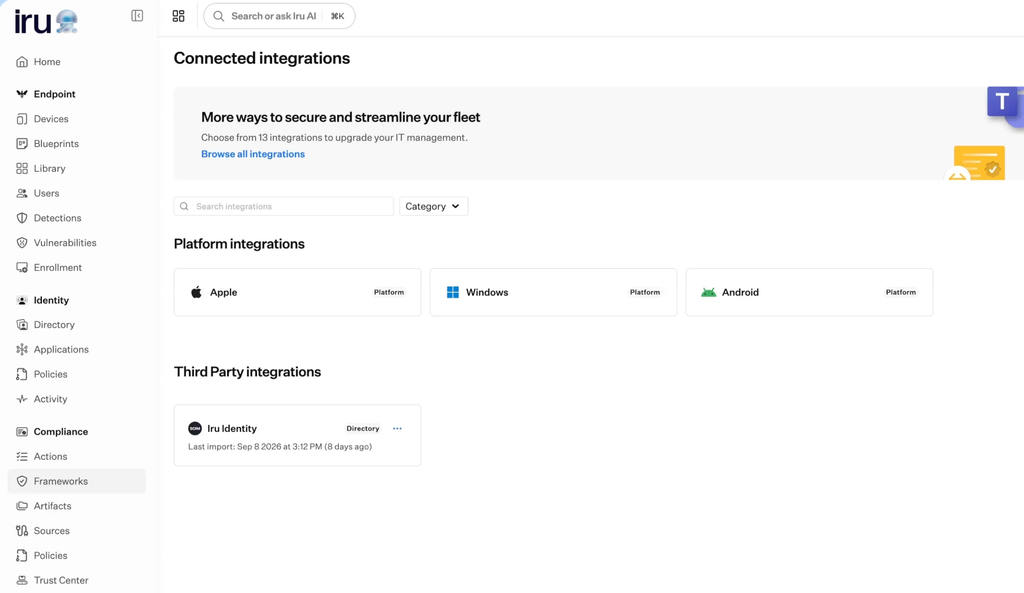
For Apple, you set up three things:
- APNs certificate: generated through Apple’s Push Certificates Portal.
- Automated Device Enrollment token: from Apple Business.
- Apps and Books token: also from Apple Business, for app licensing.
Then connect your identity provider under third-party integrations: Iru’s own, Entra ID, Okta, Google Workspace or whatever you use. Do this now, because your blueprint logic can target department and job title straight from your identity provider. Connect it first and you build your assignment logic once, instead of untangling it later.
Step 2: Create a blueprint from a template
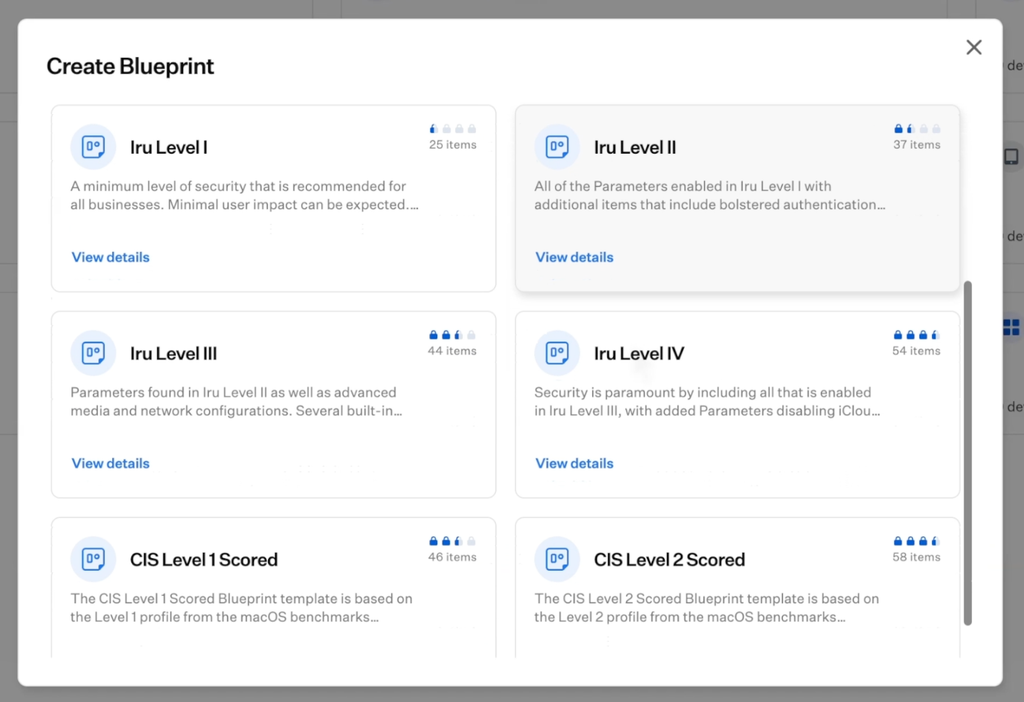
Go to Blueprints and click Add Blueprint. You don’t have to start from scratch: there are six templates in two groups.
- Iru levels 1 to 4: each level includes everything below it and locks down a bit more, at the cost of more friction for users. Level 4 turns off iCloud services entirely, which makes sense for a defense contractor but is probably overkill for a design agency.
- CIS Level 1 and 2: based on the benchmarks of the Center for Internet Security, a nonprofit whose hardening standards auditors recognize. Most compliance frameworks want broadly the same controls, so CIS is a solid starting point whatever framework you’re after. Level 1 is the safe baseline; Level 2 is stricter and reduces functionality on purpose.
The templates are Mac-only for now.
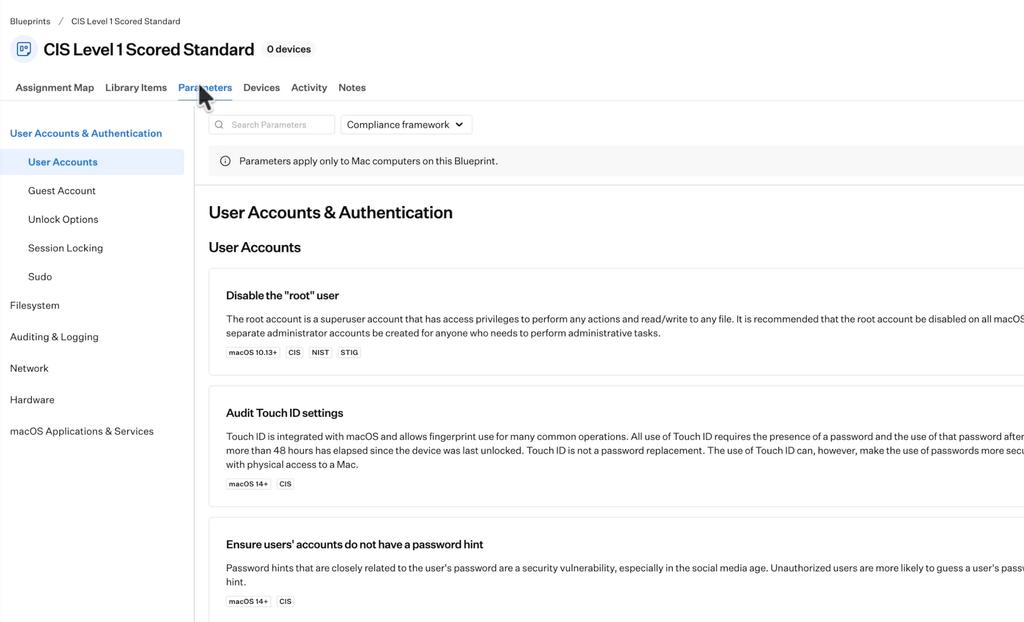
Much of what a template gives you sits in parameters, which have their own tab inside the blueprint. These are Mac hardening settings like disabling the root user or requiring a login banner, and each one is tagged with the frameworks it satisfies, such as CIS, NIST and STIG. Click Edit Parameters to switch individual ones on or off.
You can also change any library item the template set up. For example, open the passcode item, click Edit, change the minimum password length, and save.
Step 3: Add your apps
The template gives you a security baseline, but not your apps. Go to the Library, click Add Library Item, and set the Supported On filter to your platform. Most of what you need is under Auto Apps, Iru’s catalog with apps like Chrome, Zoom, 1Password and the Adobe suite. Say your sales team needs Fathom to record sales calls: click it, configure the settings and save.
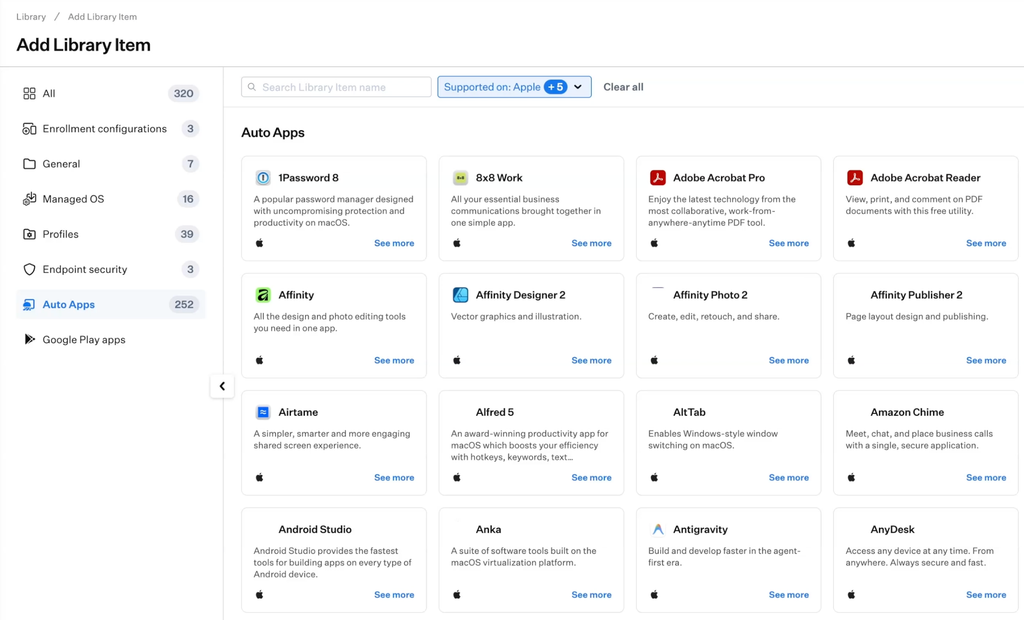
If an app isn’t in the catalog, you have fallbacks:
- Android: add apps from Google Play directly.
- Apple App Store apps: these aren’t added inside Iru. Buy the licenses in Apple Business, assign them to the Apps and Books token you connected earlier, and they appear in your library automatically.
- Internal or niche software: use Mac Custom App, In-House App for iOS or Windows Custom App to upload the installer yourself. That also covers paywalled installers like CrowdStrike, which aren’t in Auto Apps.
Step 4: Decide who gets what in the assignment map
In your blueprint, open the Assignment Map tab and click Edit Assignments. Everything under the All Devices node goes to every device in the blueprint without exception. If everyone should get Chrome, drag it in there.
For anything only some people should get, click Add Conditional Logic to build an if/else structure. For example, set the condition to “user department is sales” and drag the sales apps into that branch. You can add as many branches as you need, and besides identity provider data you can use device attributes and your own tags as conditions.
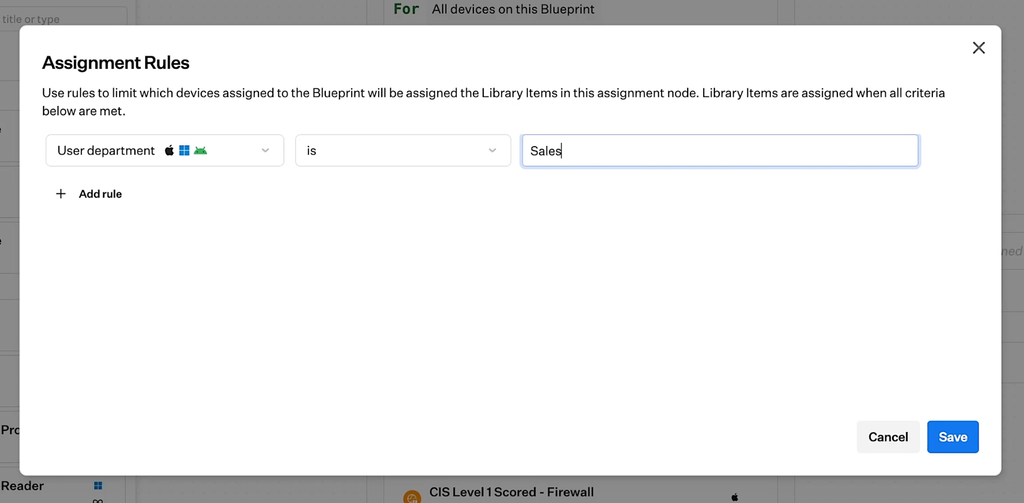
Two things that will save you confusion:
- Conflicts: some items can only apply once. A Mac can only have one firewall profile, so if two firewall profiles reach the same device through different branches, the one further right on the map wins. Both get a small icon showing that a conflict was resolved.
- Testing: type a real device or user into the search bar at the top of the map. It highlights the exact path that device takes through your logic and grays out everything it doesn’t get. That’s the fastest way to check your rules.
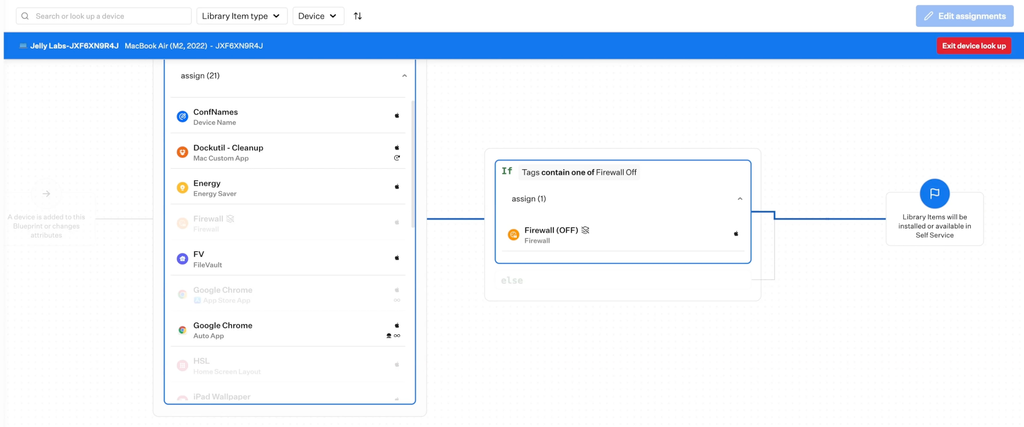
Careful: changes you save apply immediately to every device on that blueprint. On an empty blueprint that doesn’t matter, but on a live fleet, be sure before you click Save.
Step 5: Enroll your devices
There are four ways to get devices into Iru. The two you’ll use most:
- Automated Device Enrollment: hardware bought through Apple Business flows in on its own and is assigned to a blueprint before anyone opens the box.
- Enrollment portal: the user goes to a link and enters an enrollment code tied to a specific blueprint. This works for Apple and Windows.
The other two are for specific cases: a one-time-use profile you can send someone for an Apple device, and a work profile link for Android. Once you’re past testing, turn on blueprint routing, which assigns new devices to the right blueprint automatically as they enroll.
Step 6: Set up app patching
Patching is where much of the day-to-day value is. Iru says new releases land in the catalog within 2 to 4 hours. In the Library, open an Auto App, click Edit, and choose one of three settings:
- Install and continuously enforce: the app is always there, and comes back if someone deletes it.
- Install on demand from Self Service: the app appears in an internal app store for users to install if they want.
- Update only: patches the app wherever it’s already installed and installs it nowhere new. Useful when your team uses Zoom but someone installed Teams anyway: you don’t want Teams everywhere, but you also don’t want an unpatched copy on that one laptop.
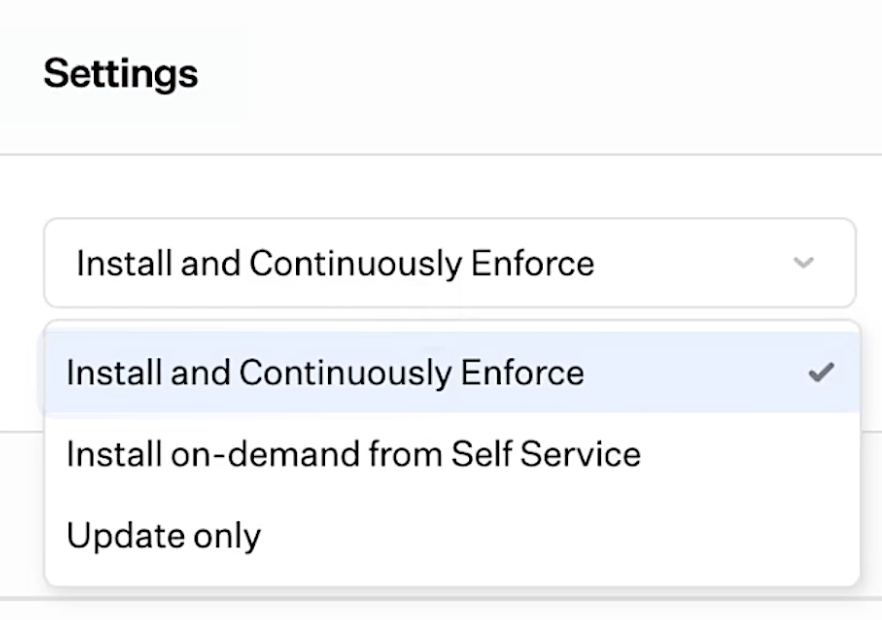
Below that, enforcement decides whether devices always get the latest version or stay on a specific one, and how long users can postpone. Users can defer an update an hour at a time, up to 24 times, before a 5-minute countdown pushes it through. Apps that are closed simply update in the background.
Step 7: Set up OS updates
OS updates are a separate library item: click Add Library Item, then Managed OS, and pick the operating system. It has two parts. Upgrade is the jump to a new major version, which you can push automatically or offer in Self Service. Updates covers the smaller releases, and that’s where you set version enforcement. With rolling enforcement and a window like “within 2 weeks of release”, every new update is enforced on that schedule automatically. You can also phase an upgrade across the fleet so it doesn’t hit your office network all at once.
Watch out: devices that enroll a few versions behind are already past that deadline the moment they arrive. Instead of two weeks’ warning, the update starts right away, and a macOS update means a restart and about half an hour of downtime. Do that to a whole batch on day one of a migration and you’ll have a lot of unhappy people, so update older hardware first.
Step 8: Turn on threat protection
Threat protection runs on the same Iru agent that already manages your apps and settings, so there’s nothing extra to install. Click Add Library Item, then Endpoint Security, and choose EDR. EDR is a paid add-on, so check that it’s in your plan first. It detects malware, potentially unwanted programs, and malicious or suspicious behavior, and shows them on the Detections page.
You pick a response for malware and one for potentially unwanted programs. Detect flags the threat and leaves the file alone; Protect quarantines the file and kills the related process automatically. I’d choose Protect, because with Detect the threat stays until someone notices. On a Mac you can also isolate a device from the network, partly or fully, while you investigate.
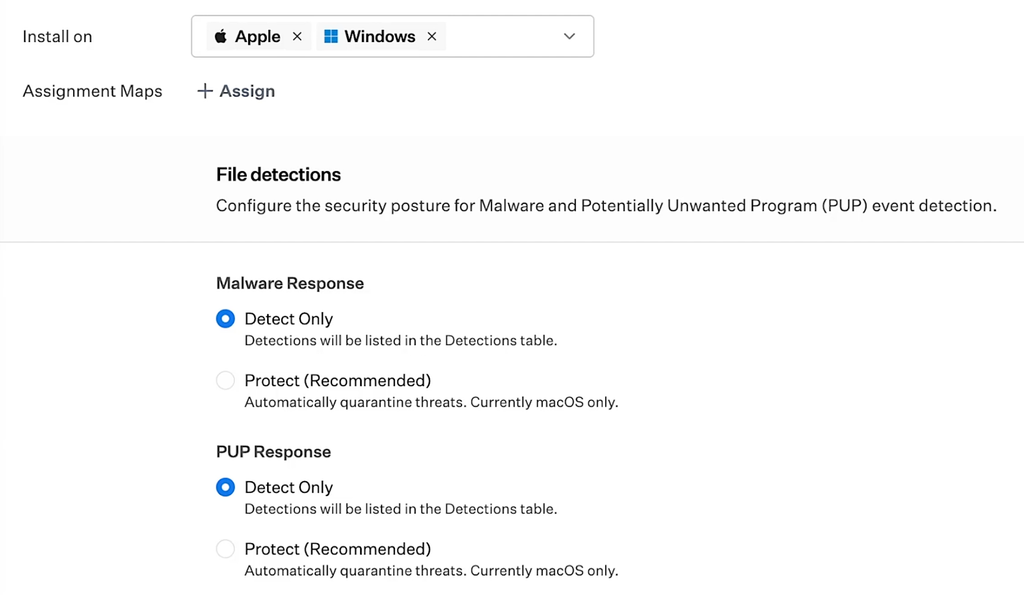
Protect and network isolation are macOS-only for now. On Windows you still get the detection, but you handle the response yourself. Every detection comes with an AI summary and recommended next steps, which helps a lot if nobody on your team does security full-time.
Step 9: Set up vulnerability management
Vulnerability scanning is another library item. It covers the operating system, apps and packages on each device, whether Iru installed them or not. The item that turns a detected CVE into action is called Vulnerability Response. By default, critical vulnerabilities trigger an enforced update as soon as they’re detected, high ones within a week, and lower severities on longer timelines. You can change each severity to enforce on detection, enforce within a window you choose, or do nothing.
If the vulnerable software is in the Auto Apps catalog, Iru can update it for you, even if you never deployed that app through Iru. Without Vulnerability Response configured, vulnerabilities just sit in a dashboard.
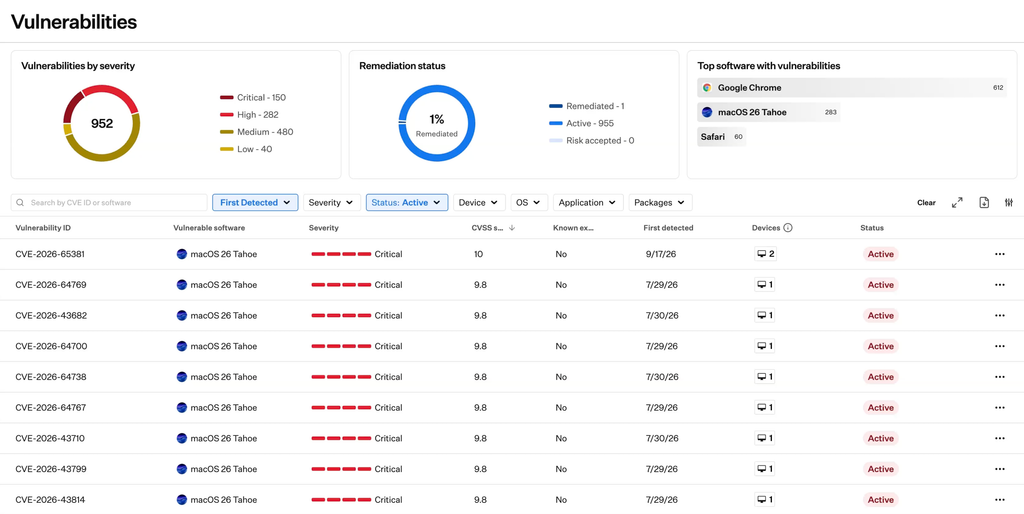
The Vulnerabilities tab shows a breakdown by severity, remediation status and the software causing the most problems, usually the browser and the operating system. The column I’d pay most attention to is Known Exploited. The CVSS score tells you how bad a vulnerability could be in theory; Known Exploited tells you whether attackers are actually using it, which is a better signal for what to fix first.
Managing devices day to day
Once everything runs, most of your work happens in two places. The Devices list shows the whole fleet in one table: Mac, Windows, iPhone, iPad, Apple TV, Vision Pro and Android. Save views for the filters you check often, and use tags for static groups, which the assignment map can use as conditions. The device record shows install and audit times for every library item, and an action menu to lock or erase the device, renew the management profile, view the FileVault recovery key and more.
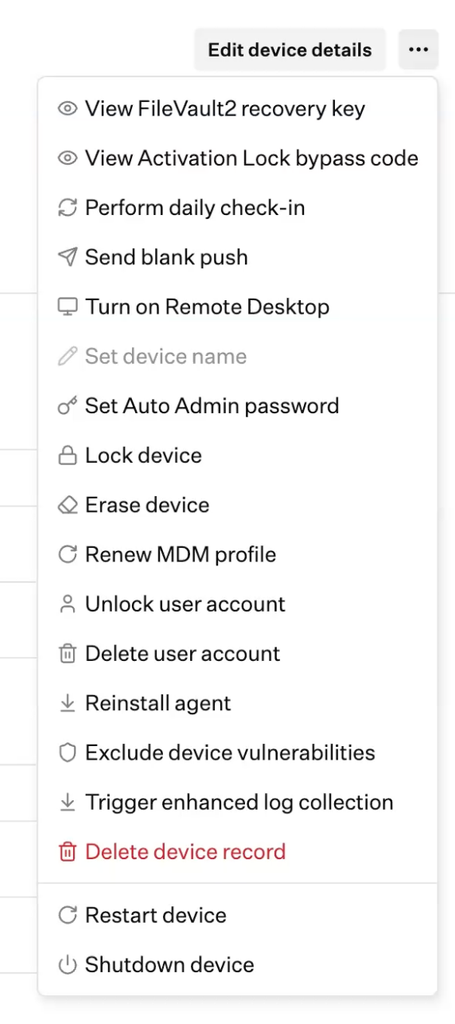
Two warnings about that menu:
- Erase before you lock. Locking an Apple device blocks the erase command. If a laptop is stolen and you want to wipe it, erase first, or you’ve blocked your own remote wipe.
- Deleting a device record is permanent. It destroys the device’s FileVault recovery key and Activation Lock bypass code for good.
If you get stuck, click the Iru AI button in the top right. It can see the page you’re on, so you can ask what a setting does and get an answer in context.
Limitations to know before you commit
- Apple is its strongest platform. That’s where the product started and where it’s deepest.
- Windows is solid for straightforward setups, with good automation and user experience, but not for complicated cases or shared multi-user machines. There are no blueprint templates for Windows yet, no pre- or post-install scripts, and the EDR detects files but not behavior yet. Windows support launched about a year ago and is improving quickly: the app catalog grew from around 50 to over 200 apps in that time.
- Android devices must be company-owned. There’s no option yet to put a work profile on an employee’s personal phone.
- It’s cloud-only. If compliance rules require an on-premises deployment, Iru isn’t an option.
None of that makes it the wrong choice for most teams, but Iru is best suited to smaller, fast-moving IT teams, especially Apple-heavy ones.
Iru pricing
Iru doesn’t publish prices. Pricing is quote-based and depends on which products you need and how many users and devices you have, with annual contracts billed yearly. EDR is sold separately from endpoint management. There’s a 14-day free trial for endpoint management, vulnerability management and EDR, onboarding and migration support is included, and you can book a demo to get a quote for your fleet.
Pricing details checked on September 28, 2026. See the official pricing page for current information.
FAQ
Is Iru the same as Kandji?
Yes. Kandji rebranded to Iru in October 2025, when it added Windows and Android device management and brought identity, endpoint security and compliance into one platform.
How much does Iru cost?
Iru’s pricing is quote-based and depends on the products you choose and your number of users and devices. Contracts are annual. There’s a 14-day free trial for endpoint management, and you can book a demo for a quote.
Does Iru work with Windows and Android?
Yes. Iru manages Mac, Windows, iPhone, iPad, Apple TV, Vision Pro and Android devices. Apple support is the most complete; Windows is newer and lacks templates and install scripts, and Android devices must be company-owned.
What is a blueprint in Iru?
A blueprint is a container of apps, settings and scripts, plus the logic that decides which device or user gets what. Each device belongs to exactly one blueprint, and you use conditional logic inside it to give different teams different setups.
Does Iru include antivirus?
Iru offers EDR (endpoint detection and response) as a paid add-on. It detects malware, unwanted programs and suspicious behavior, and on macOS it can quarantine files and isolate devices automatically.