


This tutorial contains affiliate links. If you sign up through them I may earn a commission, at no extra cost to you. It never changes my verdict.
GlossGenius is an all-in-one business platform for salons, spas, barber shops and beauty professionals. In this guide I’ll show you how to use GlossGenius from the very first sign-up screen to taking payments, so you can get your business running on it fast, whether you work solo or manage a team.
I set up a test account as a small barber shop and went through every part of the platform: the booking website, services, payments, clients, memberships, payroll and marketing. Here’s exactly what to do, in the order that makes the most sense.

Quick answer
To start using GlossGenius, you only need five steps: create your account, claim your booking website, set your location, hours and booking rules, add your services, and connect payments through Stripe. After that, you can take bookings online and run your calendar, clients, payments and marketing from one place.
- Sign up and skip the card step to get the 14-day free trial
- Claim your booking website and pick a template
- Add your address, business hours and online booking rules
- Add every service with a price, duration and optional deposit
- Verify your identity with Stripe to start taking payments
Watch the GlossGenius Tutorial
What is GlossGenius?
GlossGenius is built for salons, spas, barbers, nail techs, lash artists, massage therapists and other beauty and wellness businesses. The main reason to use it is that scheduling, payments, marketing and client management all live in one place, instead of four separate tools.
It also has a very good mobile app, which in my opinion is one of its best features. Download it and sign in right away, so you can manage bookings on the go.
Step 1: Create your account and skip the card
Go to GlossGenius through this link to get the 14-day free trial, fill in your details and click Sign up. When it asks whether you’re a professional or business owner, click Yes, I am, then verify your phone number with the code it texts you.
Next, GlossGenius asks you to add a card to keep the Gold features after your trial. My tip: click Skip. You still get the full free trial with every feature, and you only add a payment method later if you decide to keep using it.
The onboarding then asks a few questions: what your business specializes in, how many people work there, how many appointments you average per week, and which software you use now. Answer them and you land on your dashboard. If you’re switching from another tool, you can ask GlossGenius to transfer your data, or click Maybe later.
Step 2: Claim your booking website
On the dashboard you’ll find a Get started checklist. Click Start on “Get discovered and booked online” and enter your business name.
Now pick a template for your booking website, which is the page where clients book appointments. Don’t worry about the images yet, you can change those later; just choose a layout you like. Every template is mobile-friendly, which matters because most clients book from their phone. Then choose a color palette and a font pairing that match your branding.
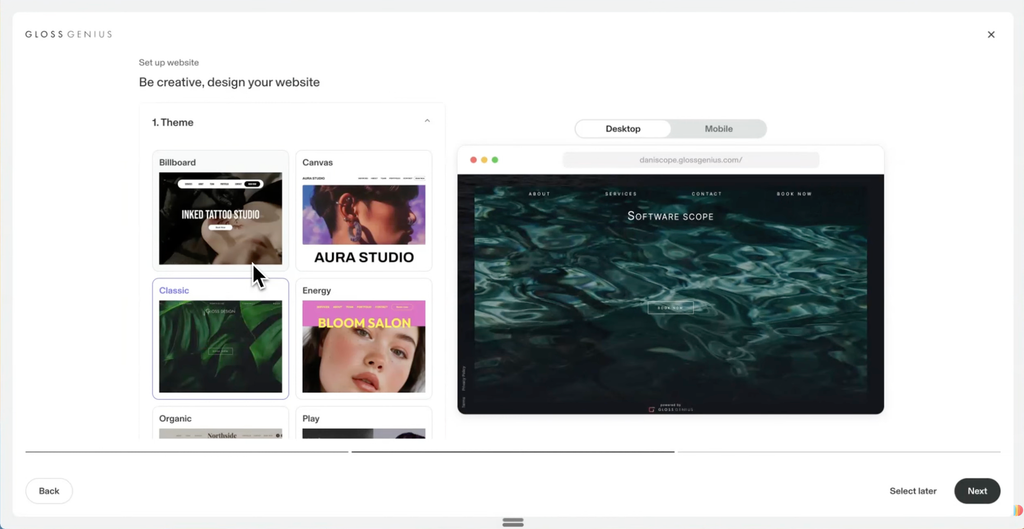
Finally, pick your web address. I recommend your business name, as in yourbusiness.glossgenius.com. Click Claim and your website is live, although it won’t take bookings until you finish the next steps.
Step 3: Set your location, hours and booking rules
Back on the checklist, click Set up services and booking. This is the most important part of the setup.
- Location: enter your business address, and turn on house call requests only if you travel to clients.
- Business hours: set your hours per day, for example Monday to Saturday from 8:00 to 17:00 with a shorter Wednesday.
- Auto-approve online bookings: choose always, existing clients only, or never.
- Card required when booking: choose new clients, all clients or never. Asking for a card makes clients commit and cuts no-shows, and it means you have their payment details on file.
Step 4: Add your services
GlossGenius suggests services generated by AI, but you’ll usually want to create your own. Click Add service and fill in:
- Name, image and description: you can write the description yourself or let AI generate it.
- Category and calendar color: the color decides how this service shows up in your calendar.
- Online booking: keep it on if clients should be able to book this service themselves.
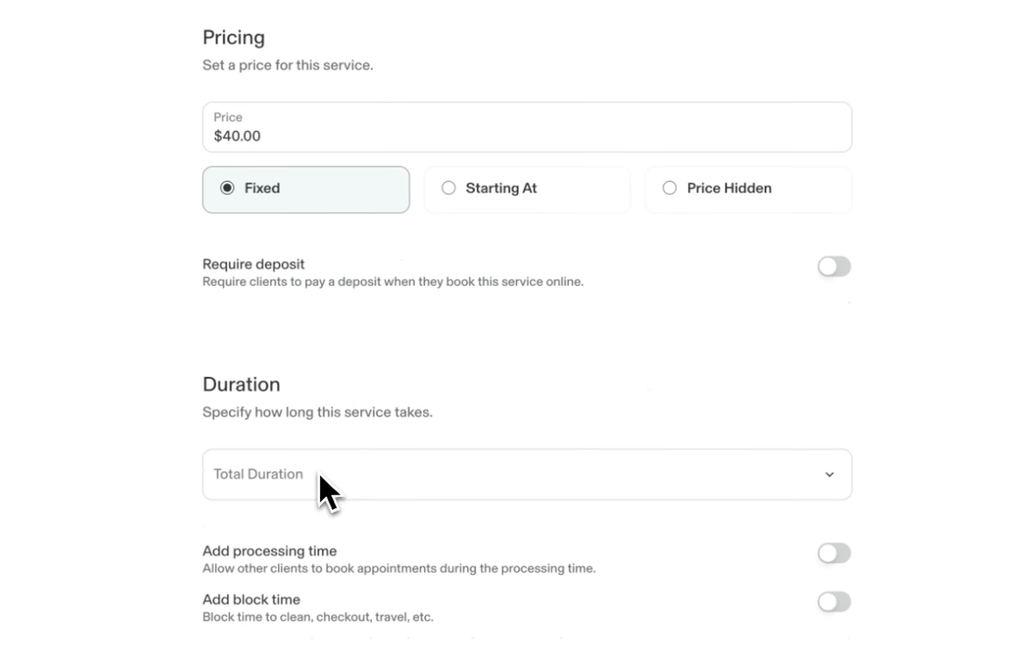
- Price: a fixed price, a “starting at” price, or hidden.
- Deposit: optional, but it drastically reduces no-shows, and if someone still doesn’t show up, they’ve already paid part of it.
- Duration and processing time: how long the service takes, plus any buffer. I add 5 minutes of block time for breathing room between clients.
- Resources: link chairs, rooms or equipment the service needs, so you never double-book them. This is a Gold feature, but you can use it during the trial.
- Options: add choices like hair length or treatment area.
Click Save, then add the rest of your services. It takes a while, but it’s worth doing properly because it’s what clients see when they book.
Step 5: Connect payments with Stripe
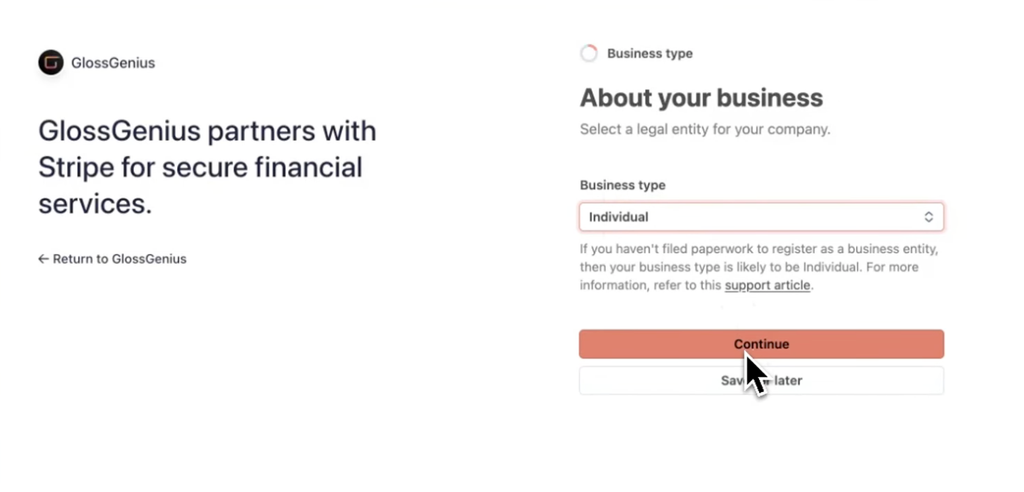
On the checklist, click Start on the payments step. GlossGenius handles payments through Stripe: click Open Stripe to verify, choose your business type, and fill in your details. Once your identity is verified, you can take card payments. GlossGenius charges a flat 2.6% processing fee, including tap to pay and cards on file.
Managing your calendar and appointments
The calendar shows all appointments by day or week, for everyone or for one team member. When a client wants to book their next visit while they’re still in the chair, don’t send them to your website: go to the calendar, select the team member, click Add and then Appointment, and set the date, time, client and service. You can make it a repeating appointment, collect a deposit and add notes.
The easiest way to fill your calendar, though, is to share the link to your booking page. You can also invite your staff so they see their own appointments and set their availability.
Payments, invoices and gift cards
The payments section has four tabs:
- Gift cards: clients can buy a gift card for your business for a friend, which brings in new clients. You need payments set up first.
- Invoices: create and send invoices with services, a due date and a payment schedule, so you don’t need separate invoicing software.
- Payouts: your available balance, upcoming payouts and payout account.
- Sales history: every sale in one list.
Clients
Anyone who books through your booking page is added as a client automatically. For walk-ins, click Add client and enter their name, phone, email and birthday. From a client’s profile you can book an appointment, see upcoming, canceled and past appointments, add notes, keep a photo portfolio, and see their memberships, packages and card on file.
You can also ring up a Quick sale from there for services, products, packages or memberships, paid by card, card on file, cash or buy now, pay later.
Packages and memberships
Under Catalog you set up everything you sell besides single services.
- Packages: bundle services and products, like a spa day, with their own price, expiry date and terms. GlossGenius says packages lead to a 3.9 times higher average checkout value.
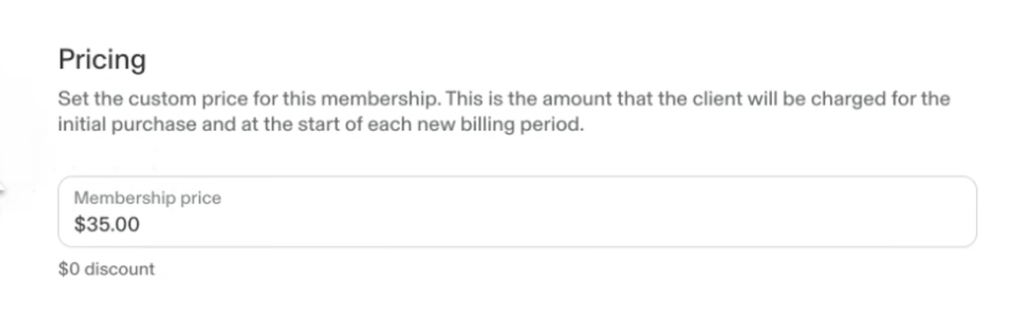
- Memberships: charge clients weekly, monthly or yearly. For a barber shop this is a great way to get recurring revenue: a $40 haircut could become a $35 monthly membership, so the client saves a little and you get steady cash flow. You can set perks, renewal limits and whether unused credits carry over.
Team, payroll and commissions
Under Team you manage staff and can even run payroll through GlossGenius, which is a paid add-on. You can set commission rules per team member, for example 10% on products they upsell, and the calculations sync straight to payroll. Time tracking lets staff clock in and out from the mobile app, with hourly rates that also sync to payroll. Time tracking needs the Gold plan and customizable commissions need Platinum.
Marketing, insights and inventory
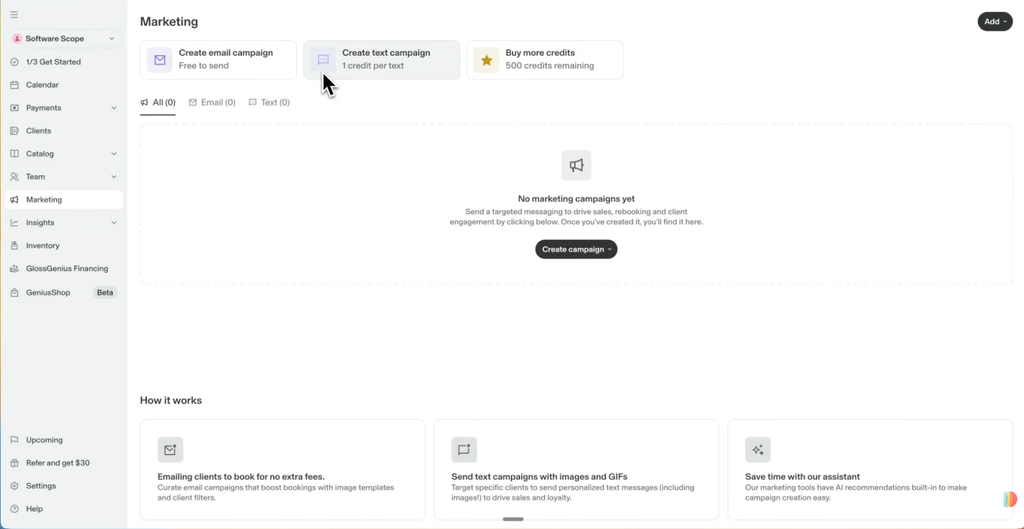
- Marketing: send email and text campaigns to your clients, for example “20% off all services this week”. Campaigns use credits, and your plan included 500 free credits when I tested it. That’s why it pays to import all your clients with both email and phone number.
- Insights: revenue per week and month, projected revenue, and you can ask AI questions about your data. Reports cover things like your most valuable clients, sales tax and retail sales.
- Inventory: track products with cost, retail price, quantity and a low-stock alert, and mark each one as retail, for your own services, or both.
- Financing and Genius Shop: GlossGenius offers business financing of up to $250,000 through Stripe Capital, and a shop with wholesale prices on beauty brands.
GlossGenius pricing
| Plan | Price per month | What it adds |
|---|---|---|
| Standard | $28, or $24 billed yearly | Booking website, client notifications, email and text marketing, inventory, packages and memberships |
| Gold | $56, or $48 billed yearly | Forms and waivers, Google booking, automated waitlist, time tracking, room and resource management |
| Platinum | $168, or $148 billed yearly | Team goals, analytics, customizable commissions, Google marketing analytics, built for teams of 10+ |
Every plan comes with a 14-day free trial and no credit card is required. Payment processing is a flat 2.6%, and payroll is an add-on at $40 per month plus $6 per team member.
Prices checked on September 28, 2026. See the official pricing page for current prices.
Is GlossGenius worth it?
If you run a salon, barber shop, spa or similar business, GlossGenius replaces a booking tool, payment system, invoicing software, email marketing tool and even payroll with one platform. The setup takes an afternoon, mostly spent adding services, and the mobile app makes day-to-day use easy. Use the free trial to set up your real services and take a few bookings before you decide on a plan.
FAQ
Does GlossGenius have a free trial?
Yes. Every plan comes with a 14-day free trial, and you don’t need a credit card. When it asks for your card during sign-up, you can click Skip and still get every feature.
How much does GlossGenius cost?
The Standard plan costs $28 per month ($24 billed yearly), Gold costs $56 per month ($48 yearly) and Platinum costs $168 per month ($148 yearly). Card payments cost a flat 2.6%.
How do I set up online booking in GlossGenius?
Claim your booking website from the Get started checklist, then set your address, business hours and booking rules, and add your services with prices and durations. Share your booking link, and clients can book and pay online.
Does GlossGenius work for barber shops?
Yes. It’s built for barbers as well as salons, spas, nail techs, lash artists and massage therapists. Memberships are especially useful for barbers, because regular clients can pay monthly for their haircuts.
Can GlossGenius run payroll?
Yes, as a paid add-on. It can pay staff directly, calculate commissions and sync time tracking from the mobile app to payroll.